![Logo Black.png]](https://help.opensend.com/hs-fs/hubfs/Logo%20Black.png?height=33&name=Logo%20Black.png)
Note: The Reconnect integration must be set up separately from the Connect integration. While both destinations may appear related, they function independently and require distinct configuration steps. Be sure to follow the specific setup instructions for Reconnect to ensure a smooth integration process.
- Go to Integrations -> Connections -> Identity Integration
- Click “Add destination"
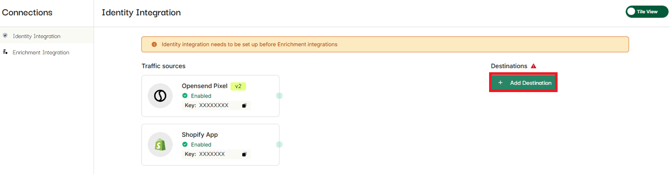
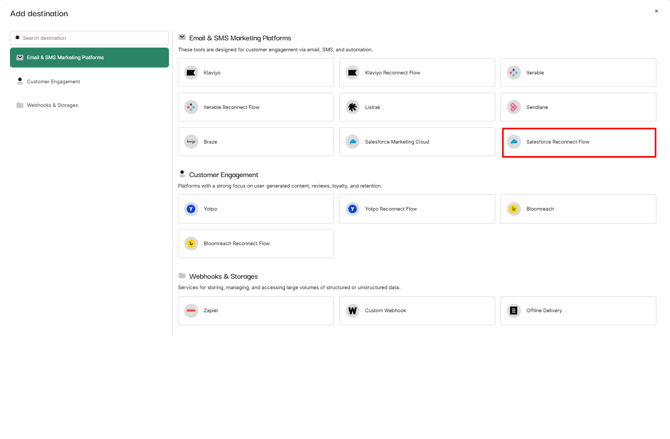
- Select Salesforce Reconnect flow
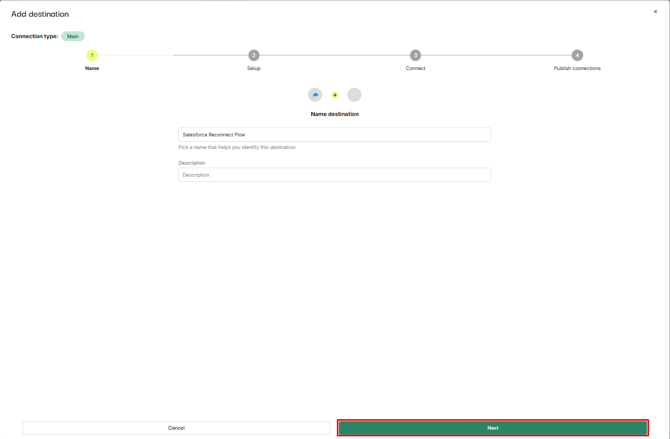
- Enter name and description (optional) and click Next
- Login to your Salesforce account and click on Setup
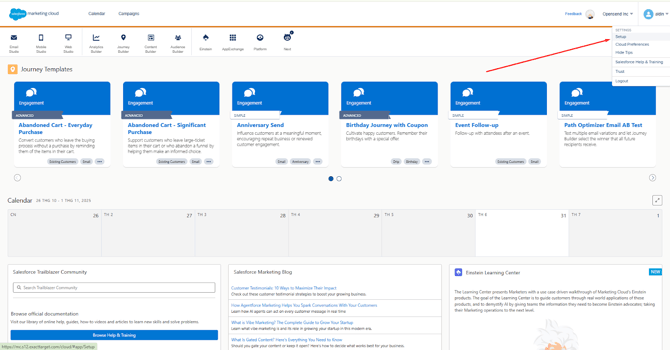
- Go to Apps/Installed packages
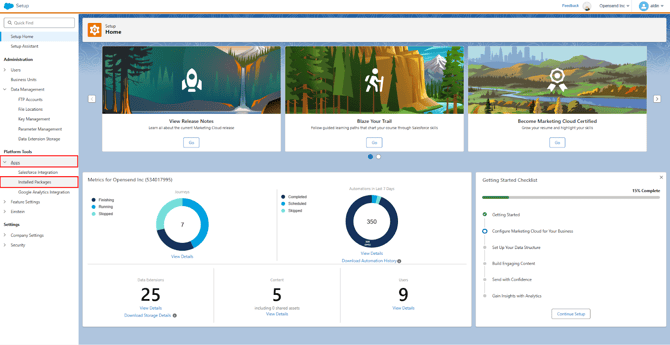
- Click on New
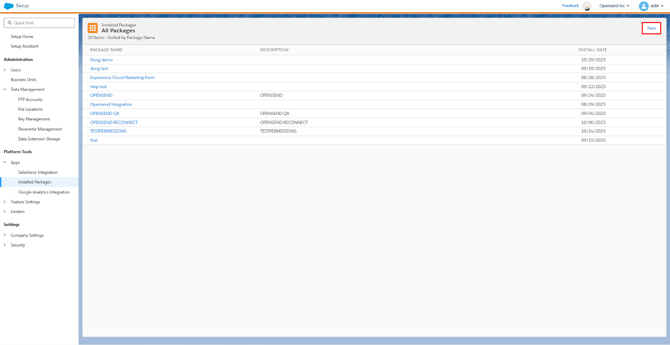
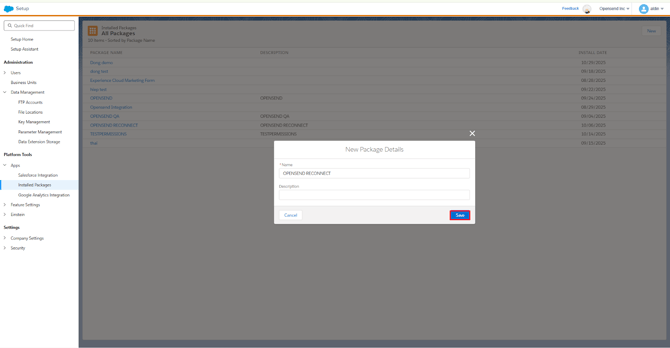
- Enter name and description (optional) and click Save
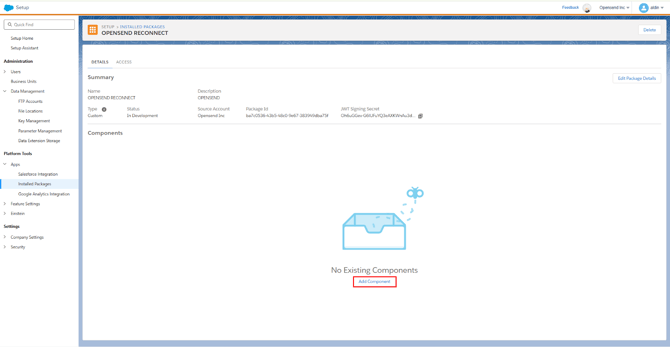
- Click on Add component
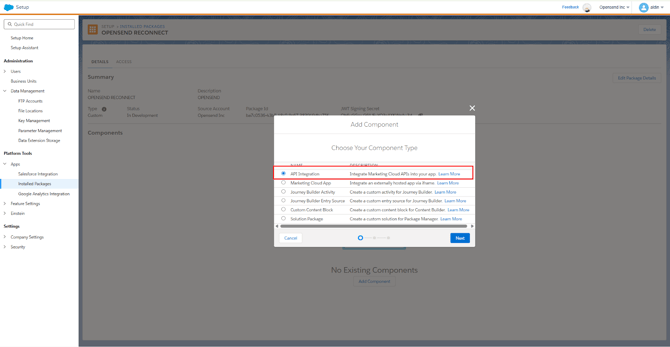
- Select API integration and click on Next button
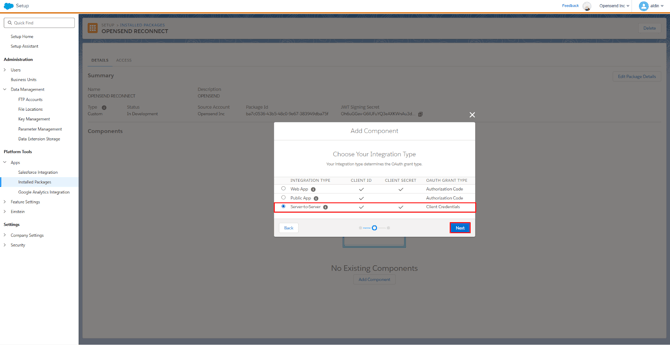
- Select Server to server option and click on Next button
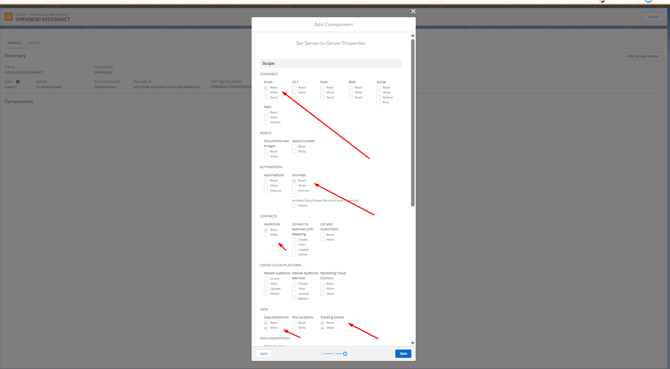
- Grant the following scopes:
- Email (Read)
- Journeys (Read)
- Audiences (Read)
- Data Extensions (Read / Write)
- Tracking Event (Read / Write)
- Click Save
Note: If you make a mistake during the setup and provide credentials to Opensend that do not have all scopes we require (causing authorization failure on Opensend webapp) - adjusting existing API component scopes could take up to 30 minutes (based on our experience) on SFMC side to be updated, so please be patient and attempt again after some time.
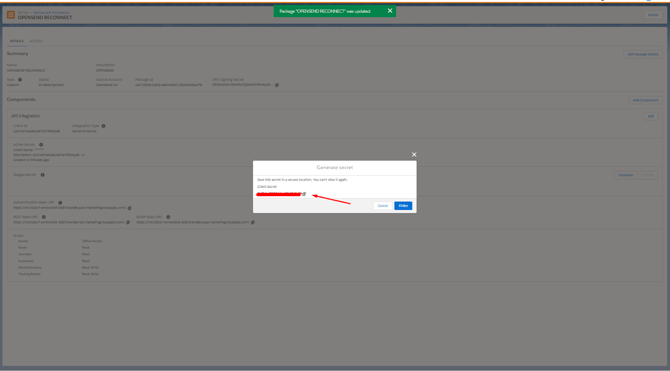
- Copy your Client secret and paste it into Opensend SFMC Reconnect setup (and store it somewhere safe!)
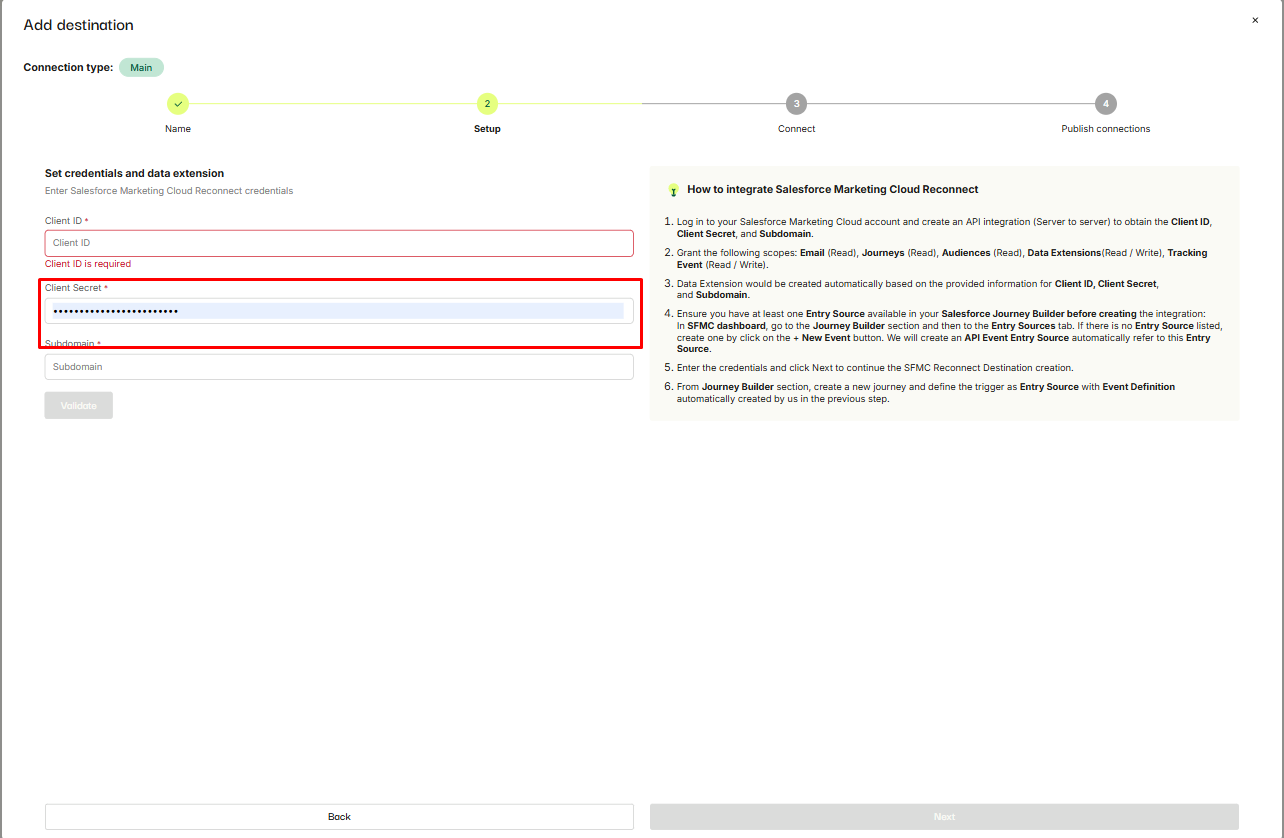
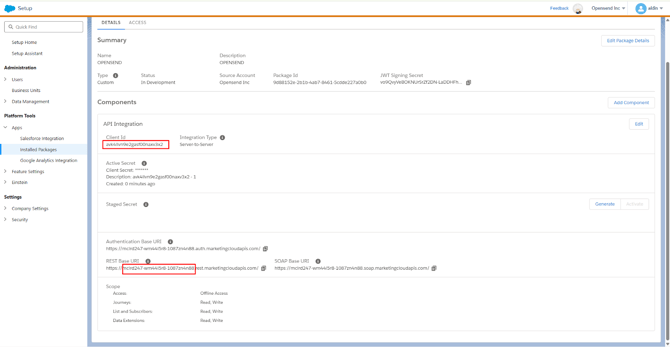
- Copy your Client ID and the base URI before “.rest.marketingcloudapis.com/” (excluding http) and paste it into designated Client ID and Subdomain field on Opensend SFMC setup
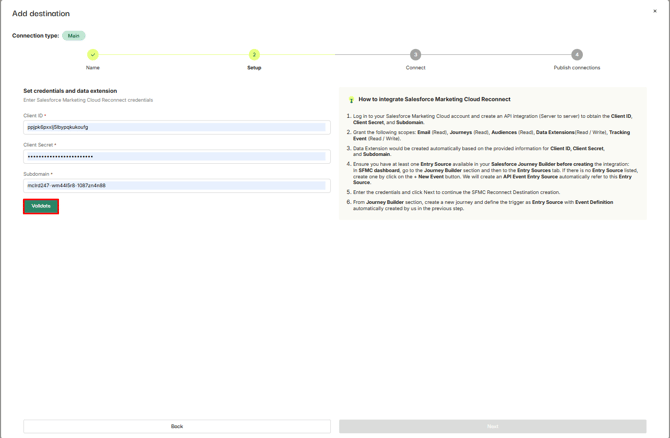
- Click Validate
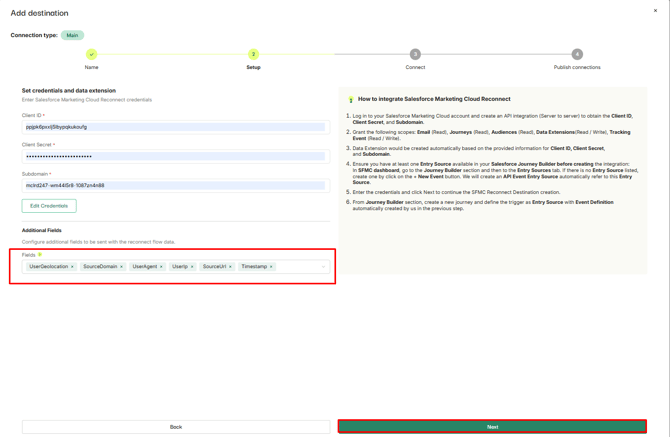
- Select additional custom fields and click on the Next button
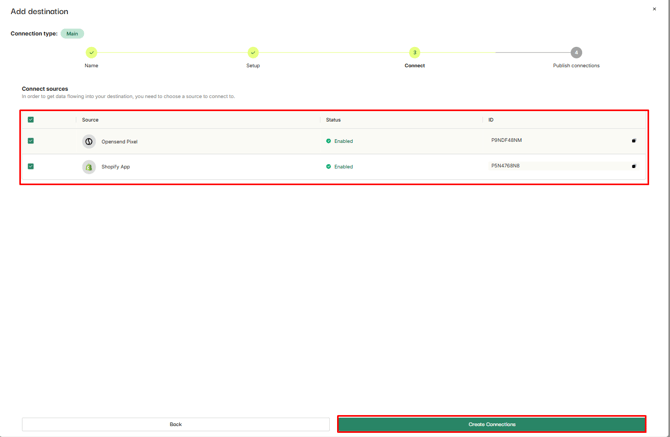
- Select traffic sources and click on Create connections button
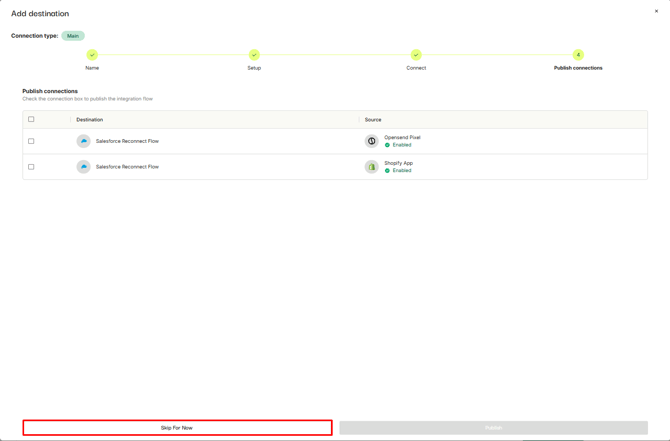
- Click on Skip for now button
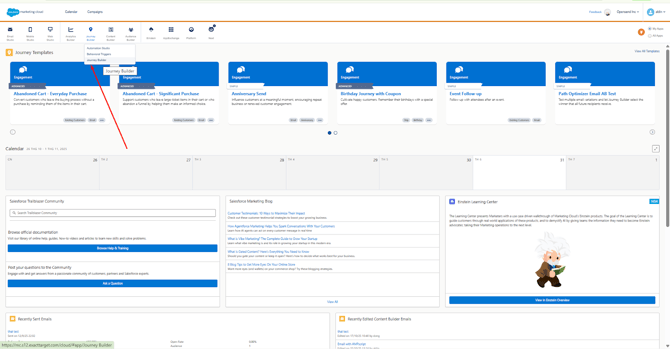
- Go to Journey builder
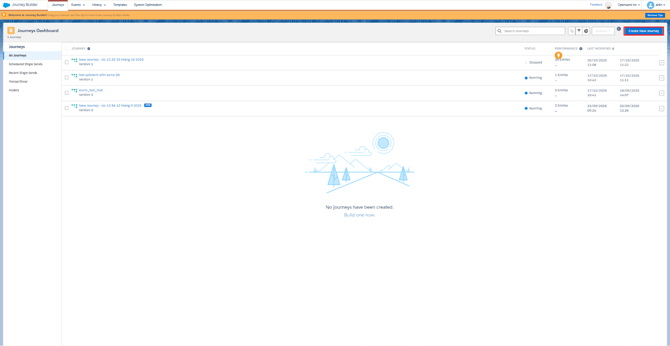
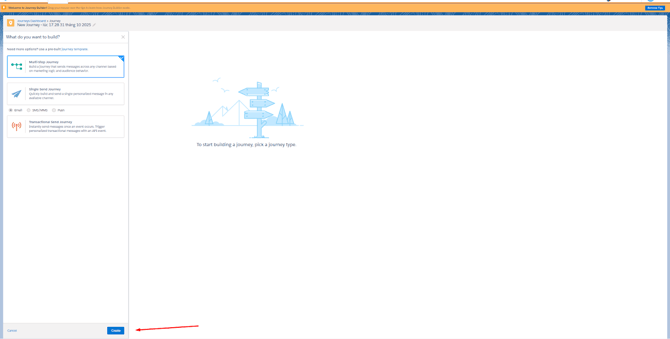
- Click on Create a new journey
- Select Multi step journey and click on create button
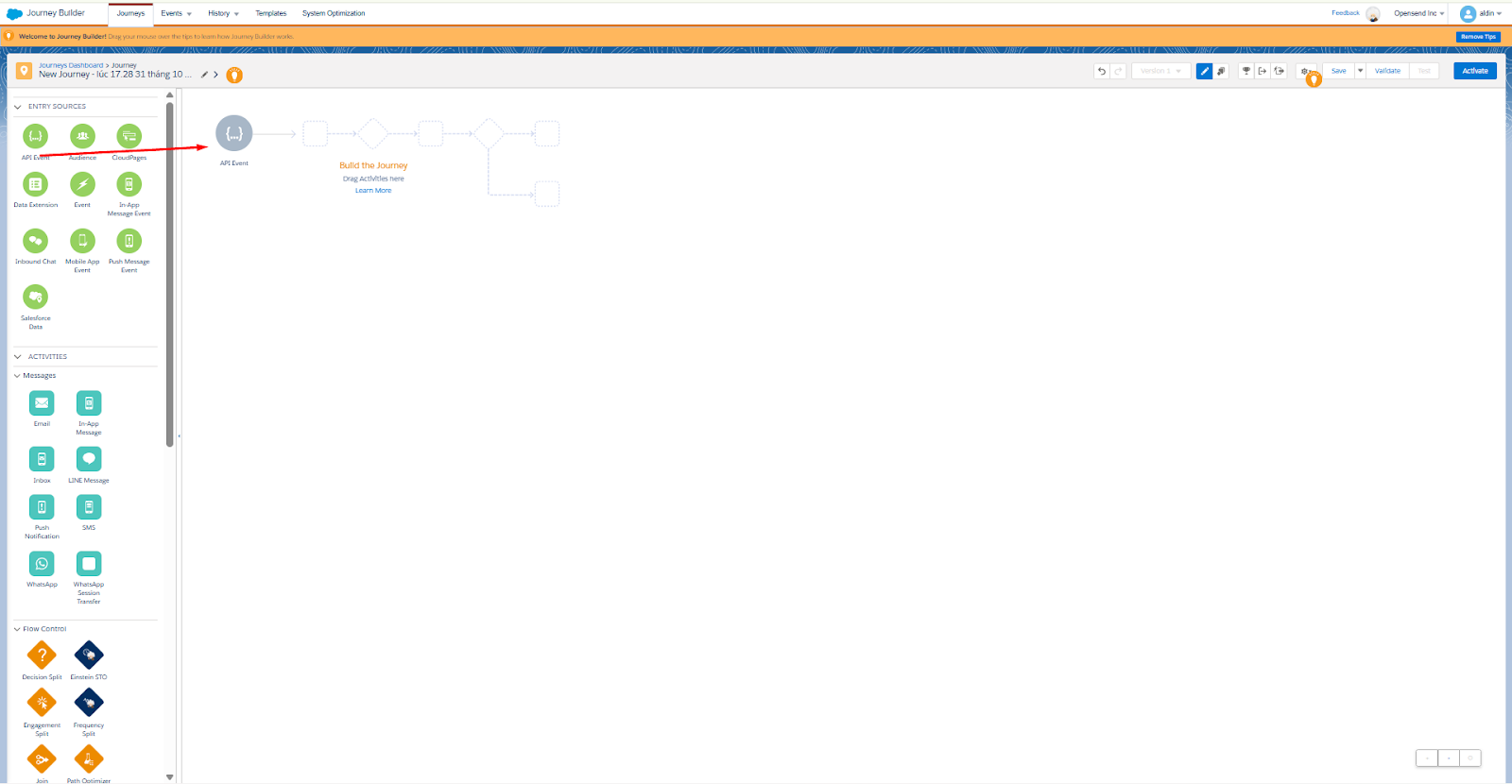
- Select API event and move it to the trigger position in the setup
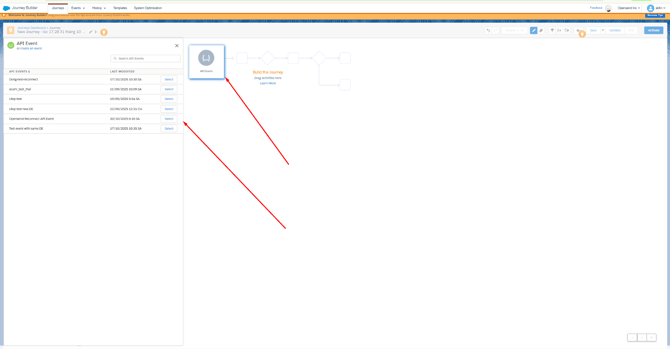
- Click on API event and select Opensend Reconnect API Event
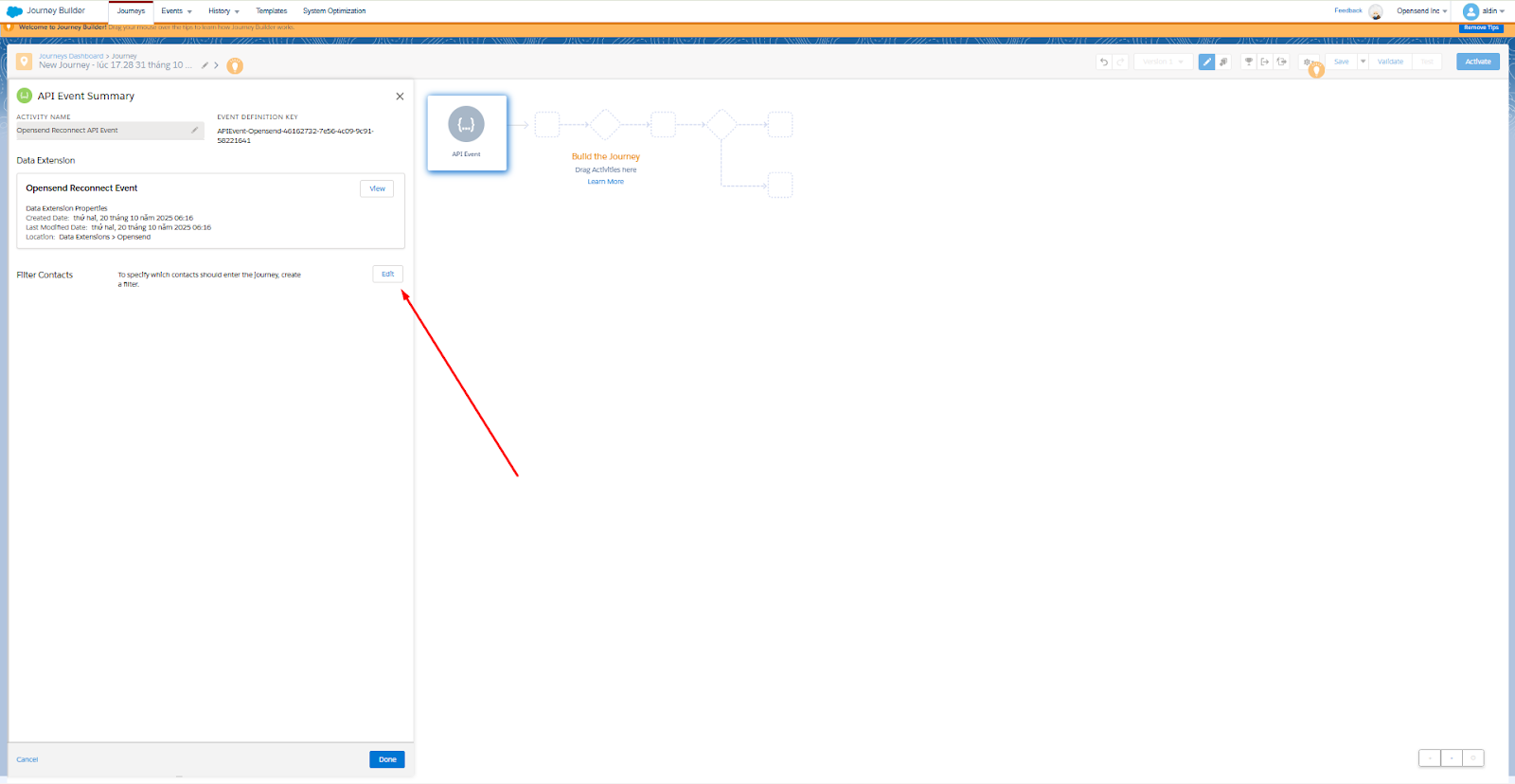
- Click on Edit button
- Click on Journey data
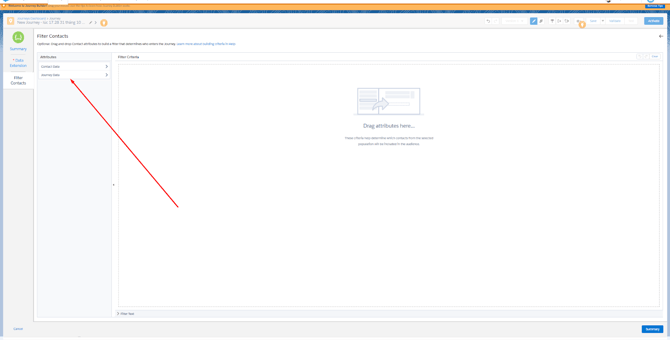
- Click on Event data
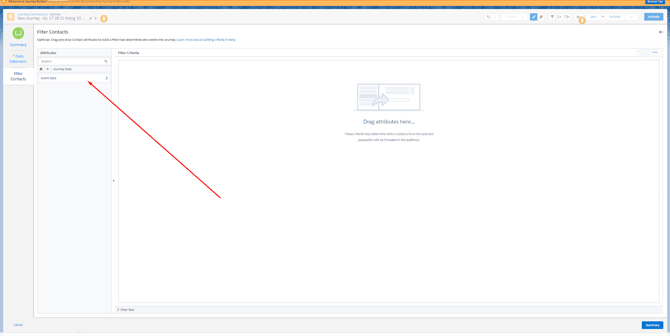
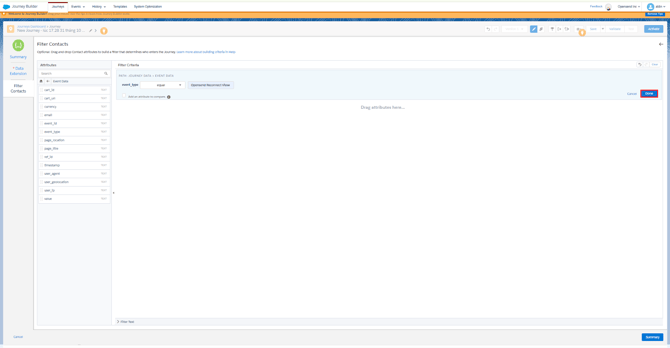
- Drag the event_type to the editing board
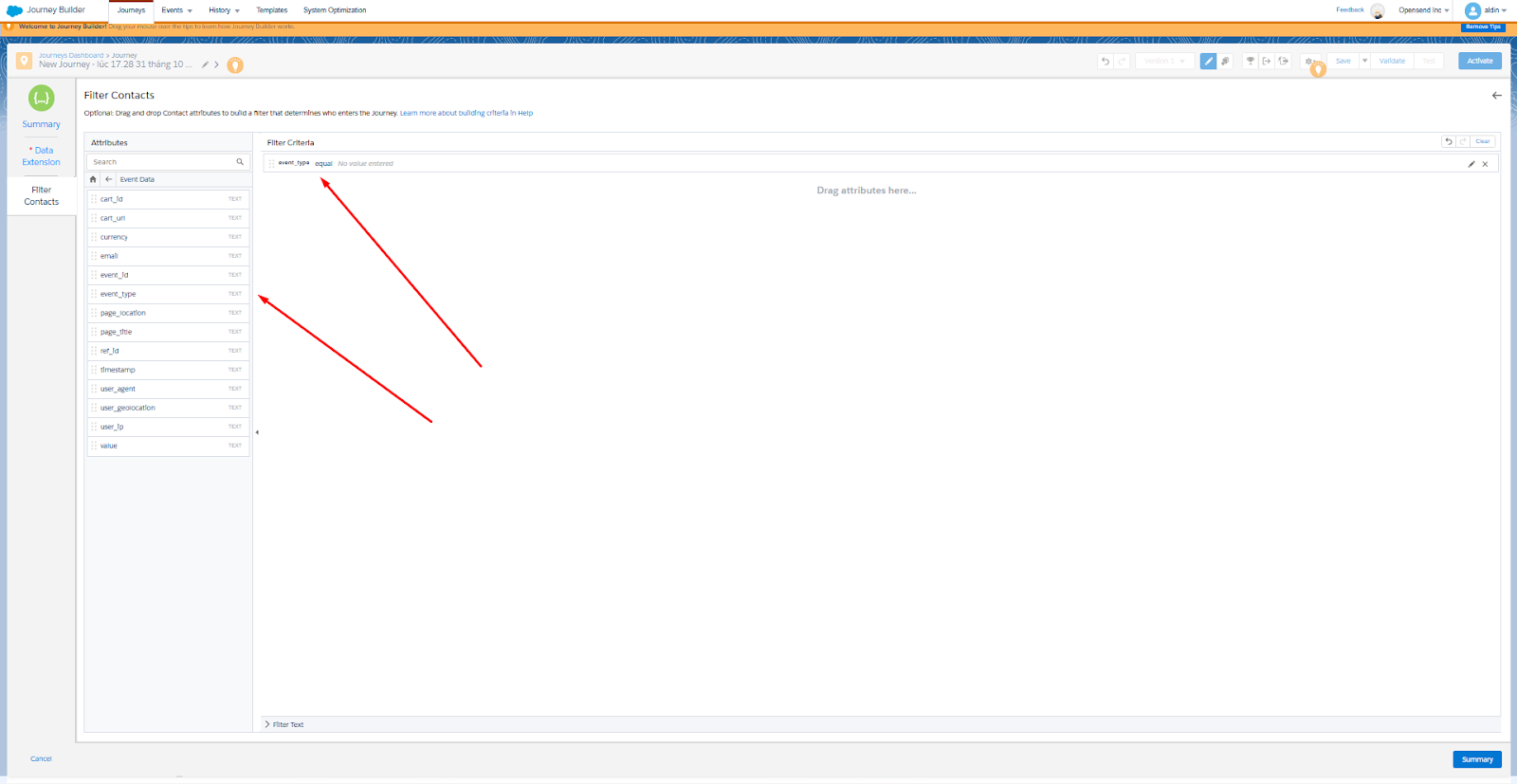
- Event type should equal to one of the following values depending on what journey you want to setup:
-
- Opensend Reconnect Page viewed
- Opensend Reconnect Viewed collection
- Opensend Reconnect Viewed product
- Opensend Reconnect Added to cart
- Opensend Reconnect Started checkout
- Opensend Reconnect Placed order
- In this example we have added Opensend Reconnect Viewed product
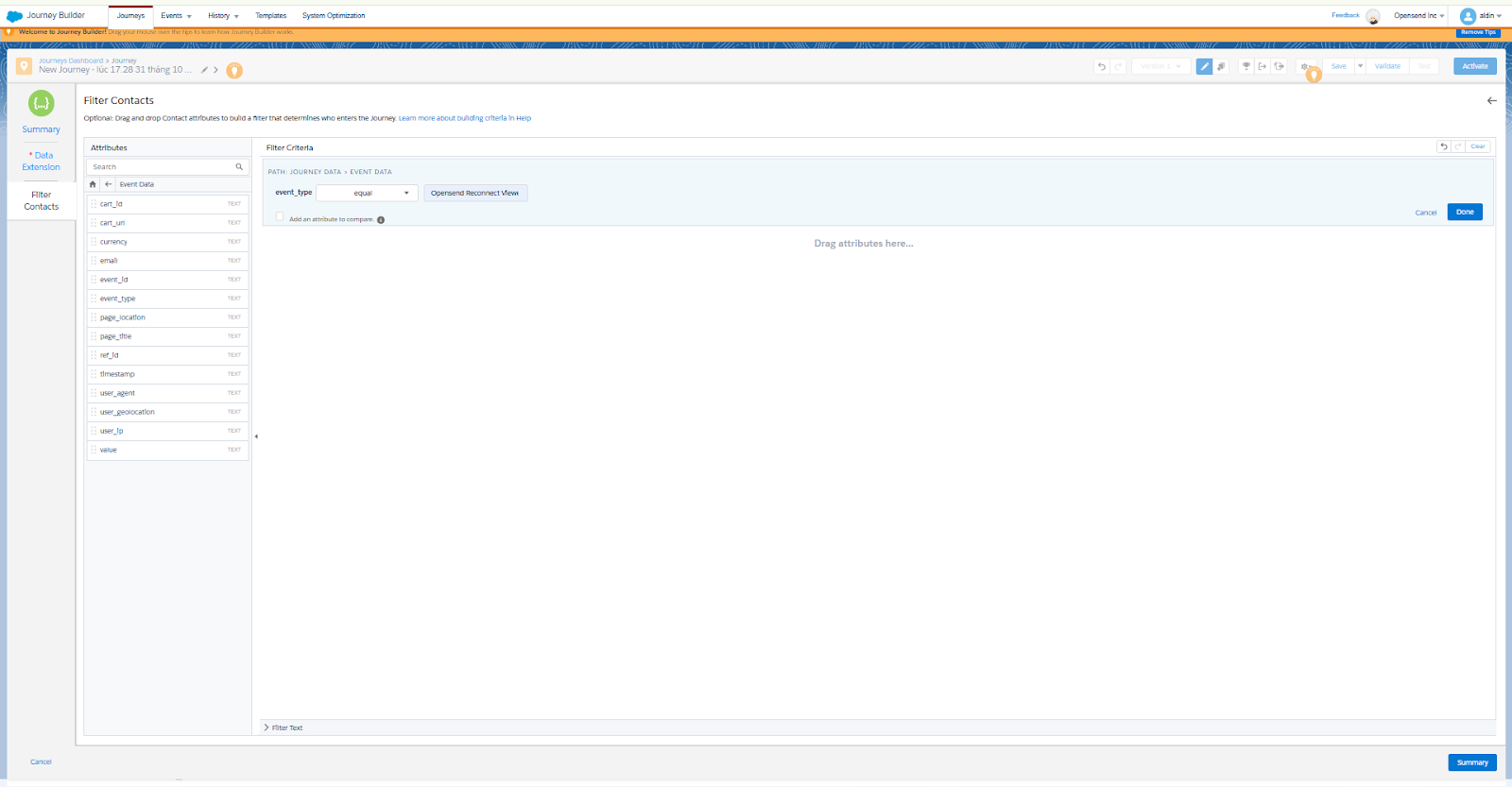
- Click on Done
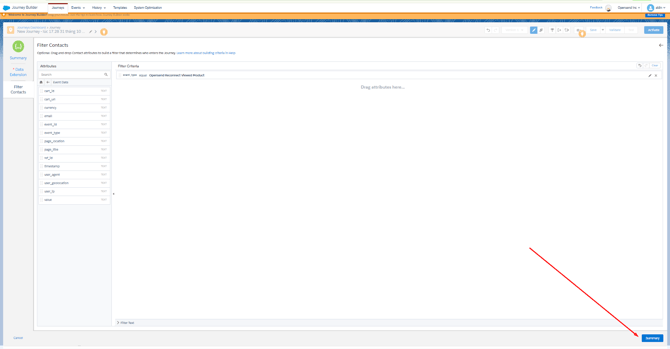
- Click on Summary
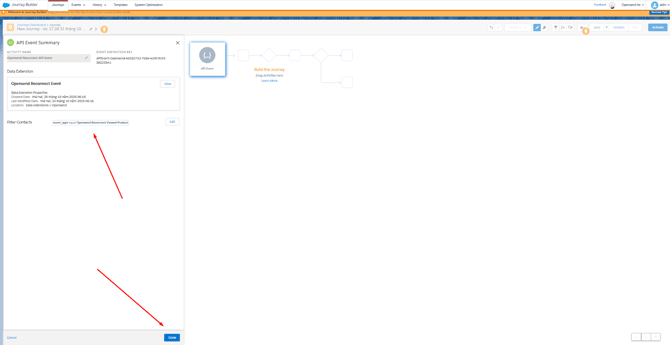
- Click on Done
- Drag email activity to the Journey creation board
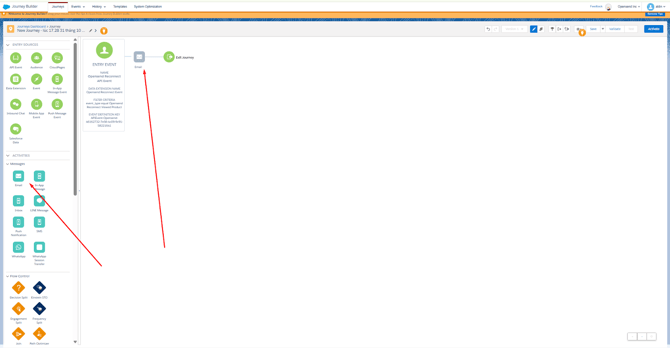
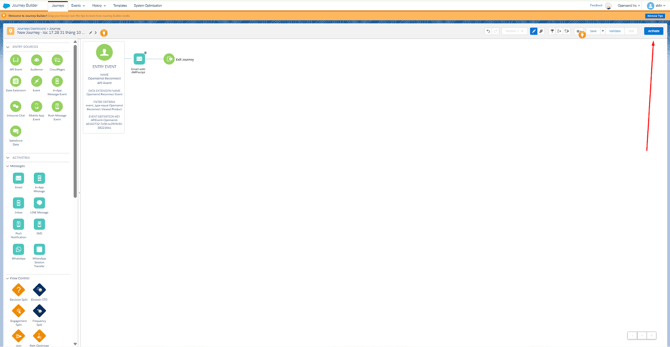
- Once you are done setting up the Email, click the Activate button
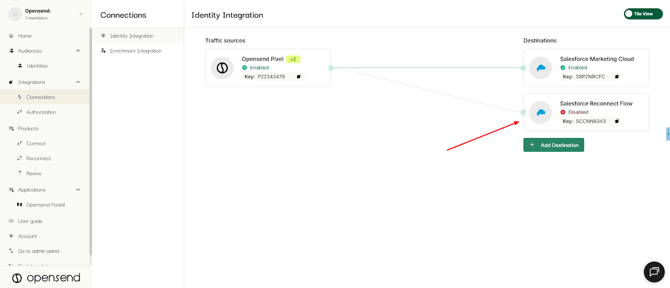
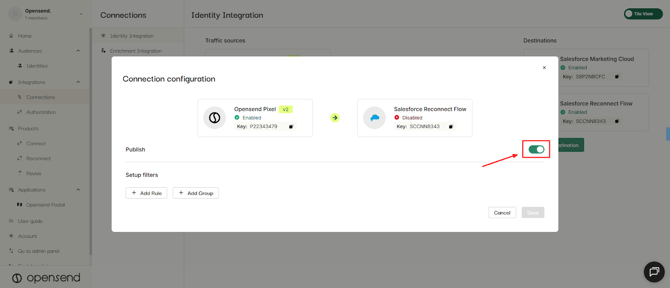
- Once all your journeys with desired Opensend Reconnect events are live, go back to your Opensend dashboard and click on your disabled SFMC Reconnect flow integration
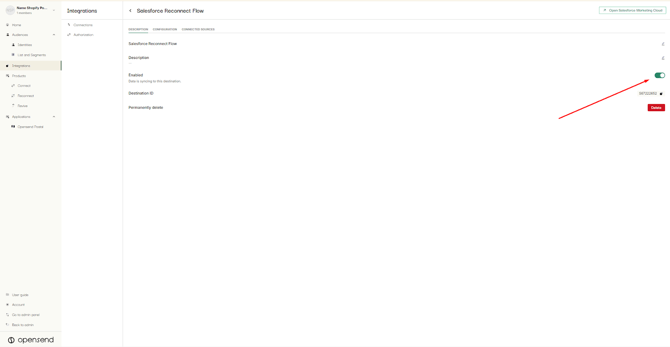
- Enable the toggle
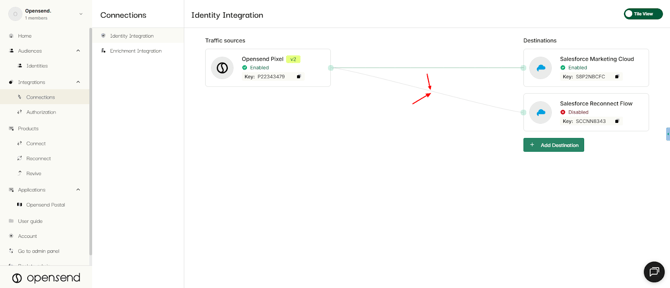
- Click the Grey lines connecting SFMC Reconnect flow with your traffic sources and enable the connections.
The Salesforce Marketing Cloud (SFMC) Reconnect is now ready.