![Logo Black.png]](https://help.opensend.com/hs-fs/hubfs/Logo%20Black.png?height=33&name=Logo%20Black.png)
Note: The Opensend Attentive Reconnect flow is designed to work with customer profiles in Attentive that include an email address.
- Go to the Integrations tab on the Opensend Dashboard
- Click Main Connections
- Click Add Destination

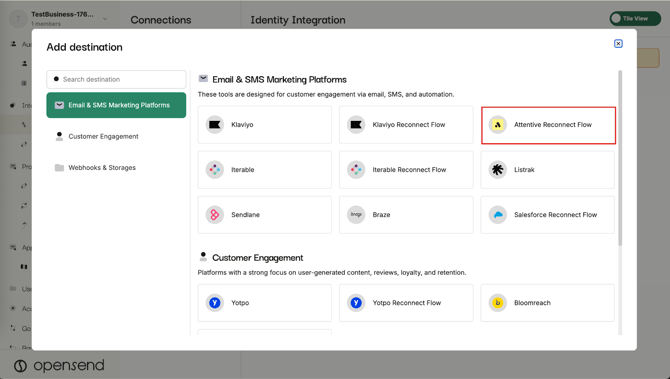
- Select Attentive Reconnect Flow
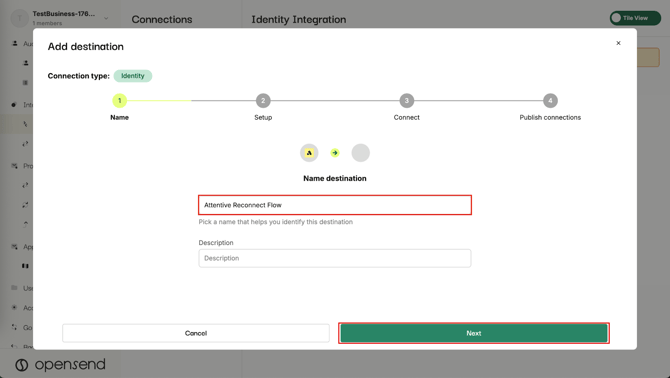
- Add a name and description for the Attentive Reconnect Flow integration and click Next
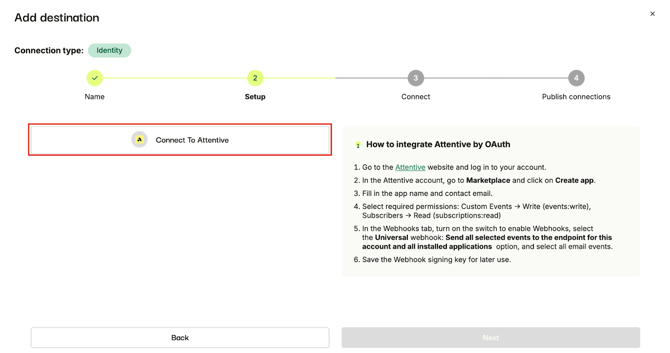
- Click Connect to Attentive
- Enter your email and click Continue
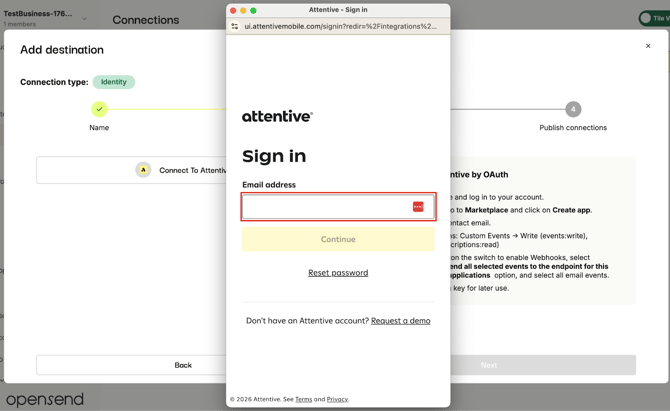
- Provide password and sign in
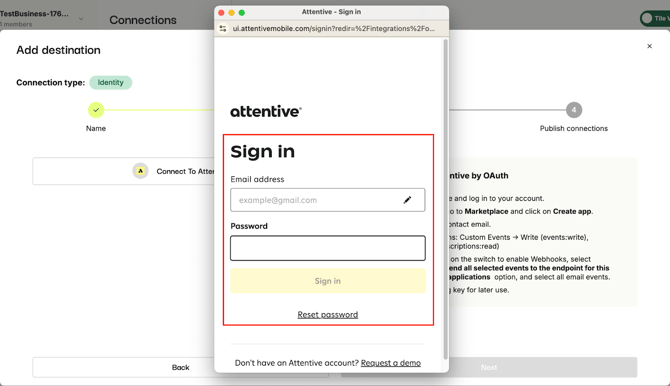
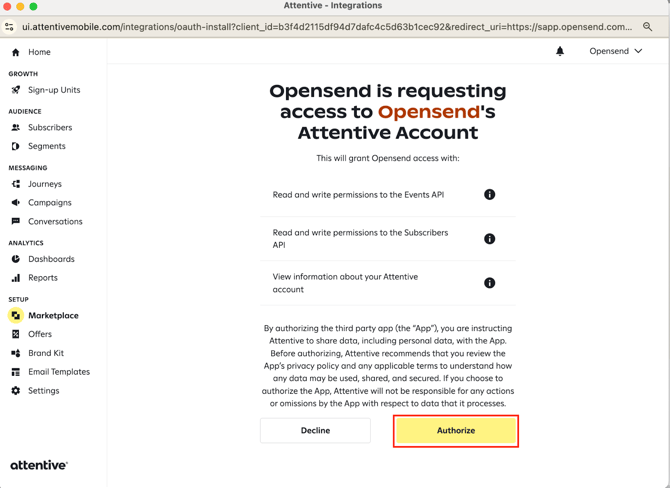
- Review access permissions and click Connect
- Your Attentive account is now connected and account details will appear on Opensend
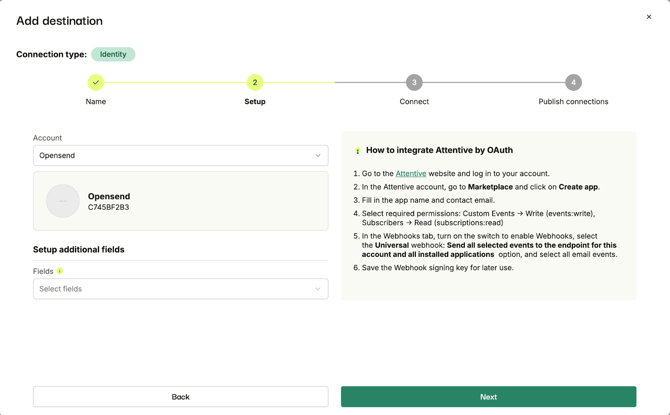
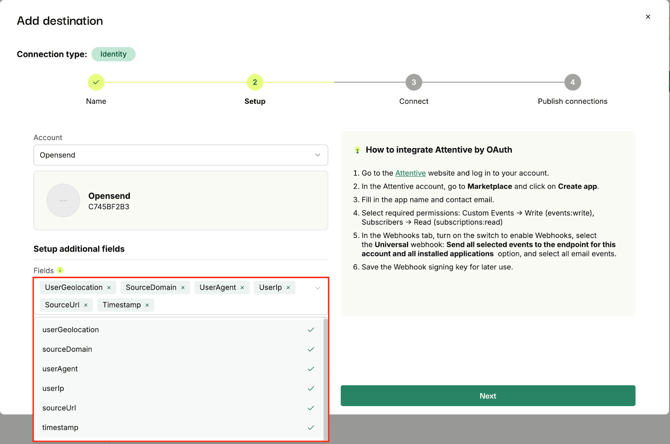
- Click on the Fields drop-down
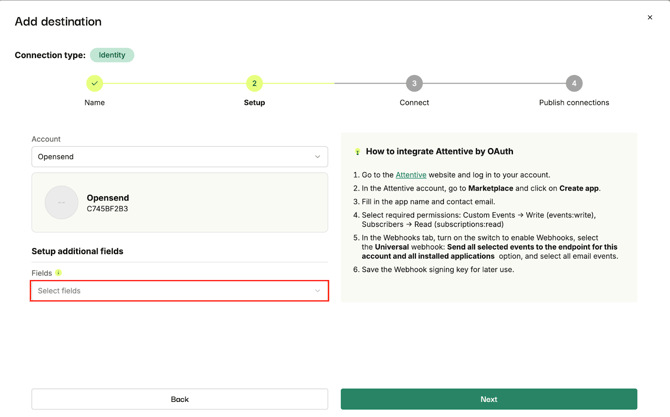
- Select all additional fields that you want to be delivered alongside the email of the contact
- Click Next
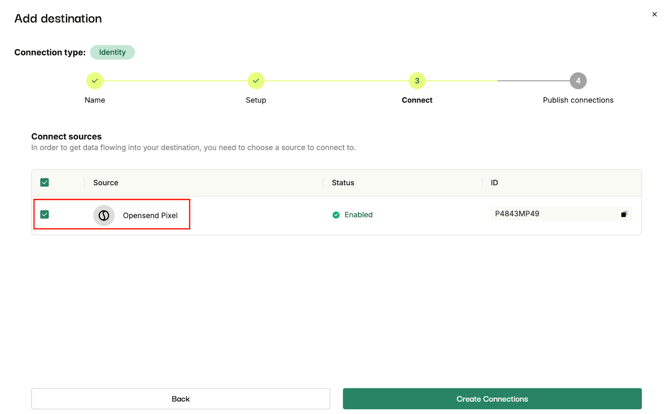
- Select traffic sources and click on the Create Connections button
- Select created connections and click on the Skip For Now button
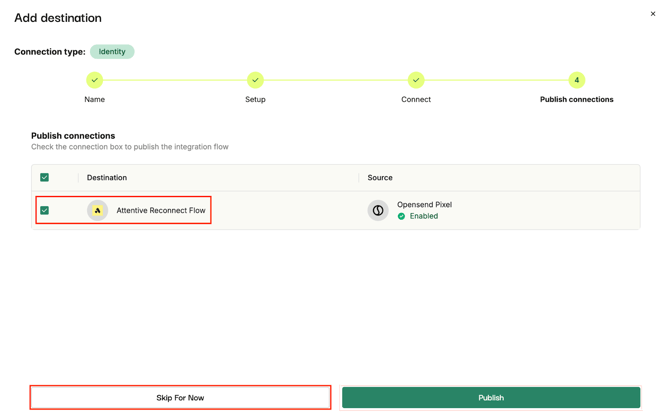
Once you have created and published your email journeys, enable your Attentive Reconnect flow integration and connection to traffic source.